

Small catalogs import cleanly. Large ones expose every formatting shortcut you took. Here’s the workflow, the CSV structure, images, the errors that come up most, and the point where the native importer isn’t enough.
How the import works
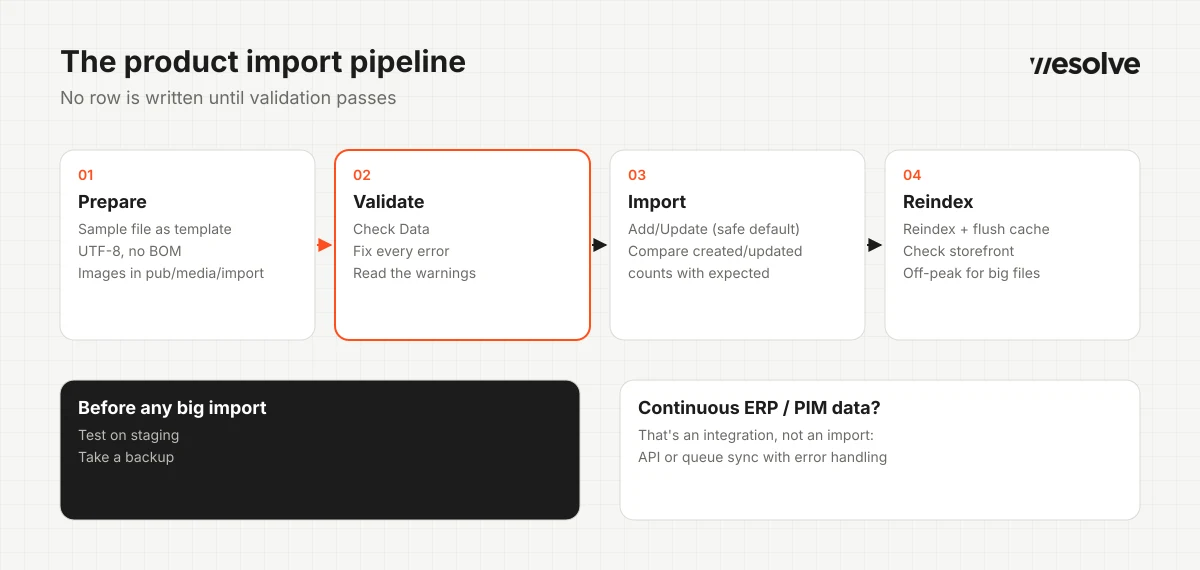
Magento reads a CSV, validates every row, and writes only once validation passes. That’s why the validate step isn’t optional: errors surface before any data changes. Upload size is limited by your PHP settings (often a few MB by default), which shapes how you split large files.
The admin workflow
- System > Data Transfer > Import, entity type Products.
- Download the sample file and build your data on it. Don’t type column names by hand.
- Choose the behaviour:
- Add/Update: creates new SKUs, updates existing ones. The safe default.
- Replace: deletes and re-creates matching products. Use with care.
- Delete: removes the SKUs in the file.
- Check Data. Fix every error; read the warnings.
- Import, then compare the created/updated count with what you expected.
- Reindex and flush caches, or the storefront won’t show the changes.
The CSV
Required for simple products: sku, product_type, attribute_set_code (must match exactly), name, price (no currency symbol), product_websites, plus usually status, visibility, weight and descriptions.
Configurable products: parents and children go in the same file. The child rows are simple products; the parent’s configurable_variations column maps each child SKU to its attribute values, in a strict syntax. Copy it from the sample file and test a small batch first.
Save as UTF-8 without a byte-order mark; files with a BOM fail in confusing ways.
Images
The CSV carries paths, not images. Upload files to pub/media/import/ first; reference them relative to that folder (for example /red-shirt.jpg) in base_image, small_image, thumbnail_image and additional_images (comma-separated). Magento moves them into the catalog folders during import. Missing images after import usually mean the file wasn’t there yet, or the filename case doesn’t match.
Common errors
| Error | Cause | Fix |
|---|---|---|
| URL key already exists | Duplicate names, or leftovers from deleted products | Add a url_key column with unique values |
| Memory limit exceeded | Big file, PHP limit | Split the file, or raise memory_limit |
| File too large | PHP upload limits | Split the file, or raise upload_max_filesize and post_max_size |
| Invalid attribute value | Dropdown values that don’t exist | Match the option labels exactly, including case |
| Broken configurable rows | configurable_variations syntax |
Copy the sample syntax; test a small batch |
When the native importer isn’t enough
| Native importer | Third-party import tools | |
|---|---|---|
| Formats | CSV | CSV, XML, JSON, spreadsheets |
| Speed on big catalogs | Can be slow | Often much faster |
| Scheduling | Manual or custom scripts | Built-in schedules |
| Best for | Routine updates, smaller catalogs | Large, recurring feeds |
When product data must flow continuously from an ERP or PIM, flat-file imports can’t keep up. That’s an integration, not an import: an API or queue-based sync with error handling (ERP integration, PIM integration). For projects that need a PIM, CommerceSuite provides one already connected to Magento.
Before any big import: test on staging (staging environments), take a backup, and run big imports off-peak so reindexing doesn’t slow the storefront.
FAQs
What’s the file size limit? It depends on your PHP upload settings. Splitting large catalogs into batches is cleaner than raising limits, and makes errors easier to find.
Can configurable products and variants go in one CSV?
Yes: children as simple products, the parent linking them through configurable_variations.
Is import the same in Open Source and Adobe Commerce? The core mechanism is the same; Adobe Commerce adds a few B2B-related entities.
Can I import through the API instead? Yes. The REST API suits integrations with ERPs or PIMs, where data doesn’t start as a file.